

Start with your device
First save the ZIP from Etsy in a web browser. If you still need to find it, use our Etsy download guide. “Extract”, “unzip” and “uncompress” all mean taking the files out of the archive.
Keep the original ZIP until you have opened the extracted PDFs successfully. No online converter is needed.
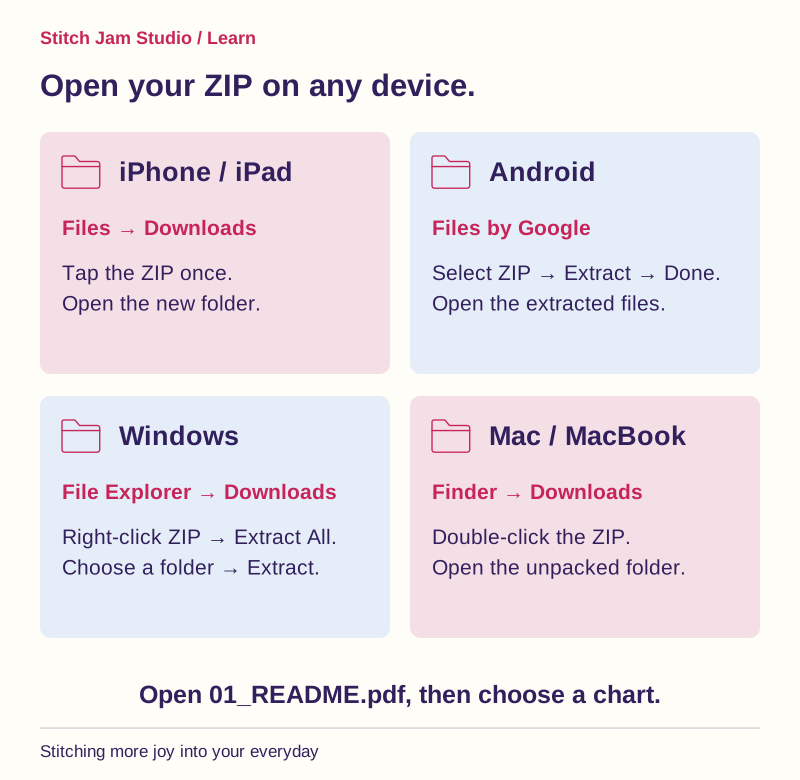
iPhone and iPad: use Files
- Download the ZIP with Safari or another browser. Open the browser’s downloads list if you need to locate it.
- Open Files → Browse and find the download, often under iCloud Drive → Downloads or On My iPhone / On My iPad. The location depends on your download settings.
- Tap the ZIP once. Files creates an unpacked folder beside it.
- Open that folder, then tap 01_README.pdf or your chosen chart. Use Share to open it in your preferred PDF reader if needed.
If the ZIP has a cloud icon, let it finish downloading before opening it. Search its filename in Files if Downloads is empty.
iPhone & iPad: tap to unpack
Find your download
Use the folder where you saved the download.
Tap the ZIP once
Files creates a folder beside your ZIP.
Open the new folder
Read the README, then open one chart PDF.
Android phones and tablets: extract in your file manager
- Save the ZIP using Chrome or another browser.
- Open Files by Google and find it in Downloads, or in the folder where you saved it.
- Select the ZIP, tap Extract, then Done. Leave “Delete ZIP file” unchecked until you have checked the PDFs.
- Open the extracted files in that location and choose your PDF reader.
Samsung and other devices may use an app called My Files or Files instead. Its wording can differ; look for Extract or Unzip. If your file manager has no extraction option, Files by Google supports ZIP archives. The same process works on an Android tablet.
Android: extract, then open
Find your download
Use the folder where you saved the download.
Select ZIP → Extract
Wait for extraction, then choose Done.
Open the new folder
Read the README, then open one chart PDF.
Windows laptops and desktops: Extract All
- Open File Explorer → Downloads and locate the ZIP.
- Right-click it, or press and hold on a touch screen, and choose Extract All….
- Choose a destination you will remember and select Extract.
- Open the extracted folder, then the README or chart PDF.
Windows can show the contents of a ZIP as if it were a folder. Use the extracted copy for printing and importing into other apps so you know where your working files live.
Windows: use Extract All
Find your download
Use the folder where you saved the download.
Right-click → Extract All…
Choose where to save the files, then select Extract.
Open the new folder
Read the README, then open one chart PDF.
Mac and MacBook: double-click in Finder
- Open Finder → Downloads, or the location you chose when saving.
- Double-click the ZIP. macOS unpacks it in the same folder.
- Open the unpacked folder and double-click a PDF to read it in Preview or your chosen PDF app.
If your browser already unpacked the download, the ordinary folder may be there already. Mac laptops run macOS; the Files instructions above are for iPhone and iPad.
Mac: a double-click does it
Find your download
Use the folder where you saved the download.
Double-click the ZIP
macOS creates the unpacked folder here.
Open the new folder
Read the README, then open one chart PDF.
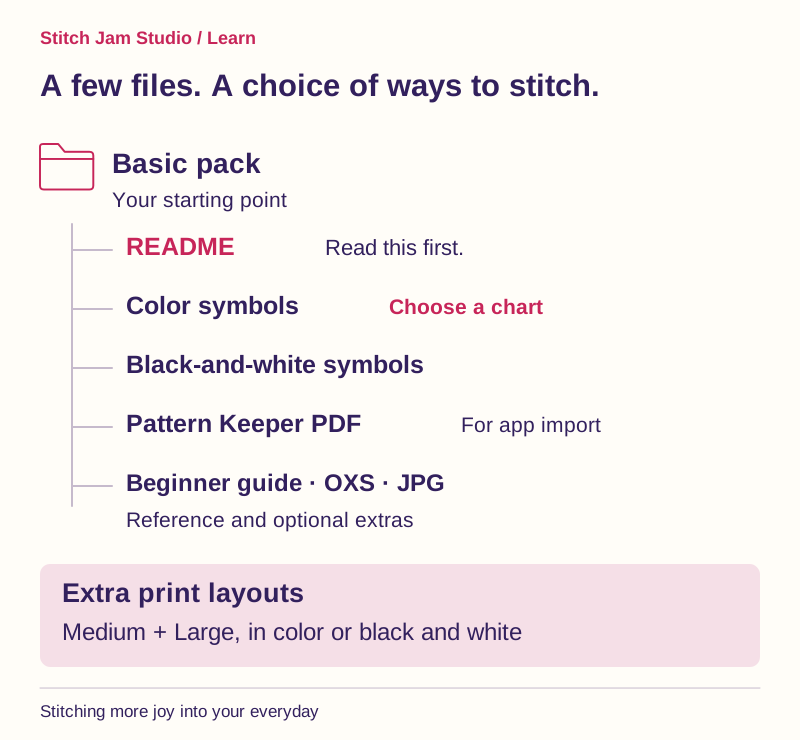
What is inside the basic pack?
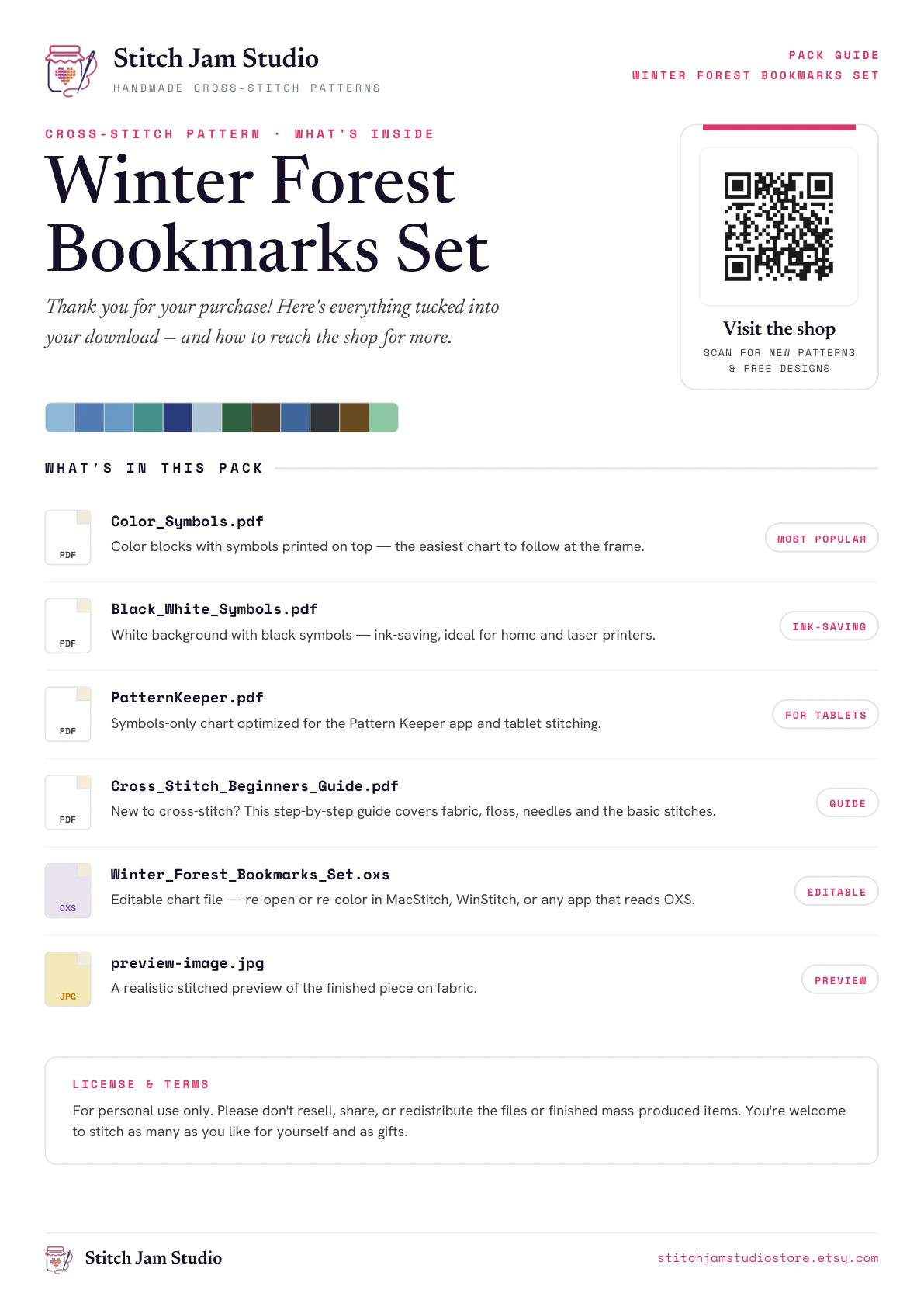
Here is a real example from Winter_Forest_Bookmarks_Set_basic. Names, page counts and extras can vary between patterns, so your listing and README are the guide to your own purchase.
- 01_README.pdf
- Your one-page map of the pack: what each file does, where to begin and the personal-use terms. Start here.
- 02_Color_Symbols.pdf
- The color chart with symbols on top, plus the project information and key. A useful first choice for following the design visually.
- 03_Black_White_Symbols.pdf
- The same design with black symbols on a white chart background. Useful when you prefer a clear monochrome chart or want to save color ink on chart pages.
- 04_PatternKeeper.pdf
- A separate PDF prepared for import into Pattern Keeper. Import this file rather than a screenshot or the ZIP, then check the imported grid and color key. App availability and support depend on the device; a regular PDF reader can still display the PDF.
- Cross_Stitch_Beginners_Guide.pdf
- A 19-page reference covering supplies, fabric count, thread, chart reading, stitches and common questions. You can read it on screen.
- Winter_Forest_Bookmarks_Set.oxs
- An editable chart format for software that supports OXS. It is an optional extra, not a PDF and not required to print or stitch the design.
- preview-image.jpg
- A stitched-look preview for reference. Follow the PDF chart and floss key when stitching; the preview is not a counted chart.
The chart PDFs also include a design preview, project notes, stitching guidance, a floss key, a color checklist, a chart assembly map and a bookmark finishing guide. The basic version has three chart pages, Medium has six, and Large has ten; the remaining pages support the same project.
PDF formats, page sizes and file sizes
Every PDF in this inspected Winter Forest example uses A4 pages, 210 × 297 mm (8.27 × 11.69 in). “Medium” and “Large” describe the chart’s printed symbol scale, not A3 paper and not the size of the stitched bookmarks.
| Pages | File size | |
|---|---|---|
| README | 1 | 0.39 MB |
| Basic color symbols | 13 | 3.16 MB |
| Basic black-and-white symbols | 13 | 2.55 MB |
| Pattern Keeper | 3 | 1.57 MB |
| Beginner’s guide | 19 | 1.16 MB |
| Large color symbols | 20 | 3.16 MB |
| Medium color symbols | 16 | 3.06 MB |
| Large black-and-white symbols | 20 | 2.69 MB |
| Medium black-and-white symbols | 16 | 2.61 MB |
The second folder, Winter_Forest_Bookmarks_Set_multiple_print_sizes, contains 01_Color_Symbols_Large.pdf, 02_Color_Symbols_Medium.pdf, 03_Black_White_Symbols_Large.pdf and 04_Black_White_Symbols_Medium.pdf. Large uses more pages to give the chart more room. Page counts above include the supporting pages, not just the chart.
The basic ZIP is about 9.14 MB; the extra print-layout ZIP is about 11.31 MB. Their sizes differ from the unpacked contents because ZIP compresses files.
Bigger symbols. The same A4 paper.
Basic
Medium
Large
All three: 210 × 297 mm · Same design · Same stitched size
Why so many files, and which should I use?
- For a straightforward start: read the README and choose the basic color-symbol chart.
- For monochrome chart printing: choose the black-and-white version.
- For bigger symbols on paper: try a Large chart page before printing the whole file. Medium is the intermediate layout.
- For digital tracking: use the dedicated Pattern Keeper PDF in a supported setup and verify its import.
- For a refresher: keep the beginner guide nearby. Leave the JPG and OXS as optional references.
The extra files give you a choice of reading comfort, ink use and stitching workflow. They are alternatives and reference material, not a checklist of everything you must print.
On A4 paper, start with Actual size / 100% and check the print preview for clipping. On US Letter (8.5 × 11 in), choose Letter paper and Fit / Shrink to printable area; this makes the chart a little smaller. Print one chart page first. The PDF remains A4 even when your printer adapts it to Letter.
Changing PDF zoom or print scaling changes the chart you read. The stitched size comes from the stitch count and your fabric count: see our Aida size guide. Follow chart coordinates across page overlaps and stitch repeated overlap squares only once.
Same stitches. Two ways to see them.
Color + symbols
Color helps you see the shape.
Symbols identify each thread.
Black & white + symbols
The same symbol positions.
A monochrome chart background.
If extraction or printing goes wrong
- The ZIP says it is damaged.
- Check that the download finished, then download it again. Keep enough free space for extraction.
- The PDF opens but the symbols look tiny.
- Zoom in on screen, or choose a Medium or Large print layout if your pack includes one.
- My PDF reader cannot open the OXS.
- That is a separate chart format. Open a file ending in .pdf instead.
- I only see the README or a library link.
- Read that document, then return to the extracted folder or follow the access link to choose the chart file.
Still stuck? Message us through your Etsy order with the filename, your device and the error you see. We will help you find the next step.